
Part 1: Git vs. GitHub & Workspace Foundations
 Ojas Deshpande
Part 1: Git vs. GitHub & Workspace Foundations
Most Git mistakes happen when you treat commands like magic spells. When a rebase goes sideways or a hard reset wipes out two hours of work, guessing commands from Stack Overflow usually makes things worse. Once you understand how Git stores data inside .git/, almost every "scary" Git problem becomes easy to fix.
In this first part of the GitHub Mastery series, we will cover the boundary between local Git and remote GitHub, set up fast Ed25519 SSH authentication and commit signing, walk through rescuing deleted commits with git reflog, and set up a clean repository layout.
1. How Git Actually Stores Your Code
Git is not a chain of file diffs. Under the hood, .git/objects is a content-addressable key-value store where every piece of data is hashed (SHA-1 or SHA-256) and stored as one of four immutable object types:
- Blob: The raw bytes of a file. Notably, a blob does not even store the filename—if two files in different folders have the exact same contents, they share the same blob hash.
- Tree: The equivalent of a directory listing. A tree maps filenames and file permissions (
100644for regular files,100755for executables) to blob hashes and sub-tree hashes. - Commit: A small text wrapper that points to one root tree hash, one or more parent commit hashes, the author and committer timestamps, the commit message, and an optional cryptographic signature.
- Annotated Tag: A permanent named pointer to a specific commit object, usually signed for a release.
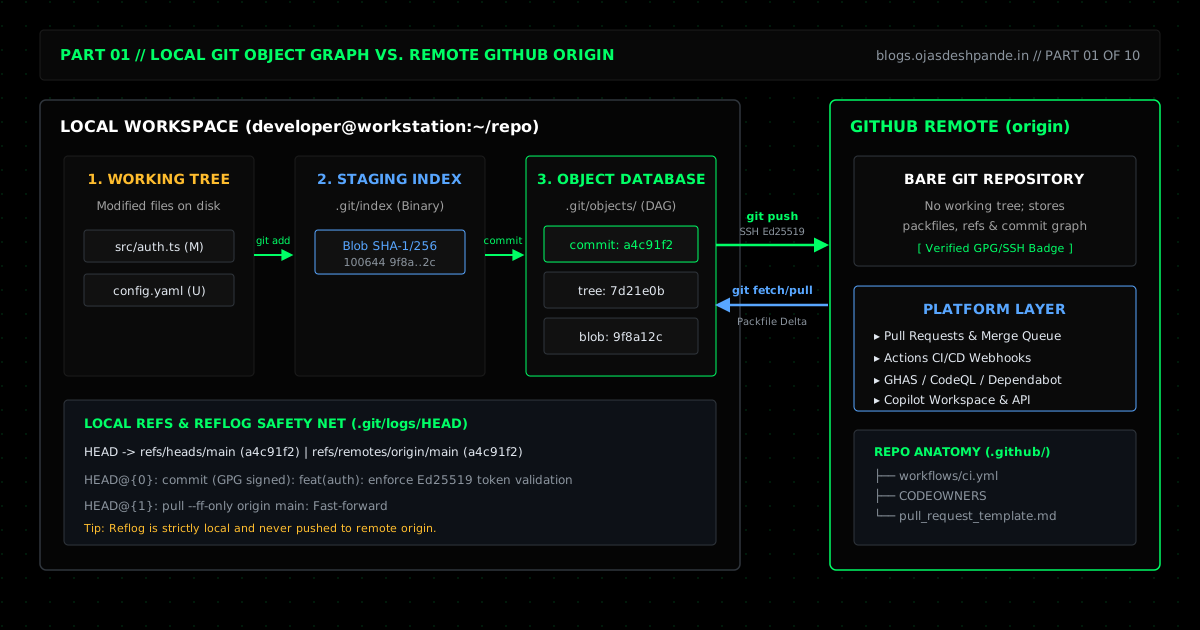
When you work locally, your code moves through three local areas before it ever touches GitHub:
1. Working Tree: The regular files on your disk that you edit in your IDE.
2. Staging Index (.git/index): A binary snapshot of what the next commit will look like. Running git add hashes your modified file into a blob inside .git/objects and updates the index entry. Using git add -p lets you stage individual hunks of a file instead of the whole thing.
3. Local Object Database (.git/objects): Running git commit writes the staged index as a tree object, wraps it in a commit object pointing to the previous commit, and moves your current branch pointer (.git/refs/heads/main) forward.
GitHub (origin) sits on the other side of the network. It hosts a bare Git repository (a repo with no working tree) and wraps it with pull requests, permissions, webhooks, and CI runners. Running git fetch origin downloads new objects into your local database and updates .git/refs/remotes/origin/main without touching your working files.
2. Why git reflog Can Save Your Day
Because objects inside .git/objects are immutable, running git reset --hard HEAD~3 or botching an interactive rebase does not actually delete your commits. It only moves your branch pointer back, leaving the newer commits "dangling" with no branch pointing to them.
Every time HEAD moves on your machine—whether from a commit, checkout, rebase, or reset—Git appends a line to .git/logs/HEAD. That log is the reflog. Until Git's garbage collector (git gc) cleans up unreferenced objects weeks later, you can jump back to any previous state in seconds. Just remember that the reflog is strictly local: it never gets pushed to GitHub.
3. Setting Up Ed25519 SSH Keys & Native Commit Signing
By default, Git lets anyone set user.email to whatever they want in their local config. If you push an unsigned commit with someone else's email address, Git will happily record it unless commit verification is enabled.
You used to need a clunky GPG setup to get the green Verified badge on GitHub. Since Git 2.34, you can sign commits using the exact same Ed25519 SSH key you use to push code.
Step 1: Generate an Ed25519 Key and Enable SSH Multiplexing
# Generate an Ed25519 key
ssh-keygen -t ed25519 -a 100 -C "you@example.com" -f ~/.ssh/id_ed25519_github

# Load it into ssh-agent and macOS Keychain
eval "$(ssh-agent -s)"
ssh-add --apple-use-keychain ~/.ssh/id_ed25519_github
To make git fetch and git push noticeably snappier, enable SSH connection multiplexing (ControlMaster) in ~/.ssh/config. This reuses a single background TCP connection to github.com for 10 minutes instead of doing a fresh SSH handshake on every command:
Host github.com
  HostName github.com
  User git
  IdentityFile ~/.ssh/id_ed25519_github
  IdentitiesOnly yes
  AddKeysToAgent yes
  UseKeychain yes
  ControlMaster auto
  ControlPath ~/.ssh/cm-%r@%h:%p
  ControlPersist 10m
Step 2: Turn On SSH Commit Signing and Sane Git Defaults
Copy the public key (cat ~/.ssh/id_ed25519_github.pub) and add it to GitHub under Settings → SSH and GPG keys twice: once as an Authentication Key and once as a Signing Key. Then run:
# Sign all commits and tags with your SSH key
git config --global gpg.format ssh
git config --global user.signingkey ~/.ssh/id_ed25519_github.pub
git config --global commit.gpgsign true
git config --global tag.gpgSign true

# Practical global defaults
git config --global init.defaultBranch main
git config --global pull.ff only
git config --global push.autoSetupRemote true
git config --global fetch.prune true
git config --global rerere.enabled true
git config --global diff.algorithm histogram
Those last five settings save a lot of daily friction:
pull.ff onlystopsgit pullfrom creating unnecessary merge commits when your local branch is behind.push.autoSetupRemote truemeans you can just typegit pushon a new branch without Git complaining about--set-upstream.fetch.prune truecleans up local references to remote branches that have already been deleted on GitHub.rerere.enabled true("reuse recorded resolution") makes Git remember how you fixed a merge conflict so you don't have to fix the same conflict twice during a rebase.
Step 3: Recovering a "Deleted" Commit with git reflog
Say you are working on a feature branch, run git reset --hard HEAD~2 by mistake, and realize you just wiped out two commits you hadn't pushed yet:
# 1. Check the local HEAD movement log
git reflog --date=iso
# Output:
# 4b825dc HEAD@{2026-10-25 14:10:02 +0530}: reset: moving to HEAD~2
# 9c4e1a0 HEAD@{2026-10-25 14:08:44 +0530}: commit: feat(payments): idempotent webhook handler
# 7f2d08b HEAD@{2026-10-25 13:22:19 +0530}: commit: refactor(db): add advisory lock helper

# 2. Inspect the commit to make sure it's the one you want
git show --show-signature 9c4e1a0

# 3. Point your branch right back to that commit SHA
git reset --hard 9c4e1a0
4. Standardizing Your Repository Layout
Whether a repository is an internal service or an open-source tool, keeping governance and automation files in .github/ keeps the root directory uncluttered:
repository-root/
├── .github/
│   ├── ISSUE_TEMPLATE/          # Structured YAML issue forms + config.yml
│   ├── workflows/               # GitHub Actions CI/CD pipelines
│   ├── CODEOWNERS               # Automatic review routing by path
│   ├── copilot-instructions.md  # Project context for AI coding tools
│   ├── dependabot.yml           # Dependency and Actions update rules
│   └── pull_request_template.md # Default PR checklist
├── src/
├── tests/
├── .editorconfig
├── .gitattributes               # Normalize line endings (* text=auto eol=lf)
├── .gitignore
├── CONTRIBUTING.md
├── LICENSE
├── README.md
└── SECURITY.md
Quick Checklist
- Switch to Ed25519 + SSH Signing: Set
gpg.format = sshandcommit.gpgsign = trueso every commit you push shows up asVerifiedon GitHub. - Set
pull.ff = onlyandfetch.prune = true: Keep your local branch history clean and free of accidental merge bubbles. - Add
.gitattributesearly: A single line (* text=auto eol=lf) prevents Windows/macOS CRLF line-ending wars across the team.
Series Navigation: ← Previous: Series Overview & Certification Roadmap | Next: Part 2: Branching Strategies & The Real-World GitHub Flow → | All Articles